You will receive the installer and setup instructions by email, along with your activation key — keys are issued by hand, so allow up to 24 hours after payment.
Run the installer on the workstation you intend to review on.
Only trying it out? Request a 7-day trial instead — same installer, same application, and the activation step below is identical.
Install on a machine with a supported GPU — playback performance depends on it. See System requirements.
03
Loading EXR & image sequences
RAW Sequencer reads numbered image sequences directly from disk — no conversion, proxy pass or transcode is needed before you can watch them. Point it at the folder or the first frame of a sequence and the frame range is detected and loaded as one clip.
Once loaded, the clip header reports the technical detail you need to trust what you are looking at: frame range, resolution, frame rate and total frame count — for example Frames 0–143 · 1280 × 720 · 24 fps · 144 frames.
Sequences are treated as a single clip with one frame range.
Multiple sequences can be loaded into separate views for comparison.
Keep each version in its own folder so version stacks stay unambiguous.
04
Loading MP4 files
MP4 files load the same way as sequences and play on the same timeline, so a rendered sequence and a delivered video can sit side by side in one review. Where the file carries audio, it plays in sync with the picture.
This is useful when a client note arrives as a video export rather than as frames, or when reviewing AI-generated video variations against a rendered version.
05
Playback controls
Playback is GPU-accelerated, so frames keep moving while you work. The transport controls sit under the viewer: play and pause, step through frames one at a time, jump to the start or end of the range, and loop the clip for repeated viewing.
Play / pause — run the clip at its native frame rate.
Step — move one frame forward or back for timing checks.
Loop — repeat the range while judging a motion or a flicker.
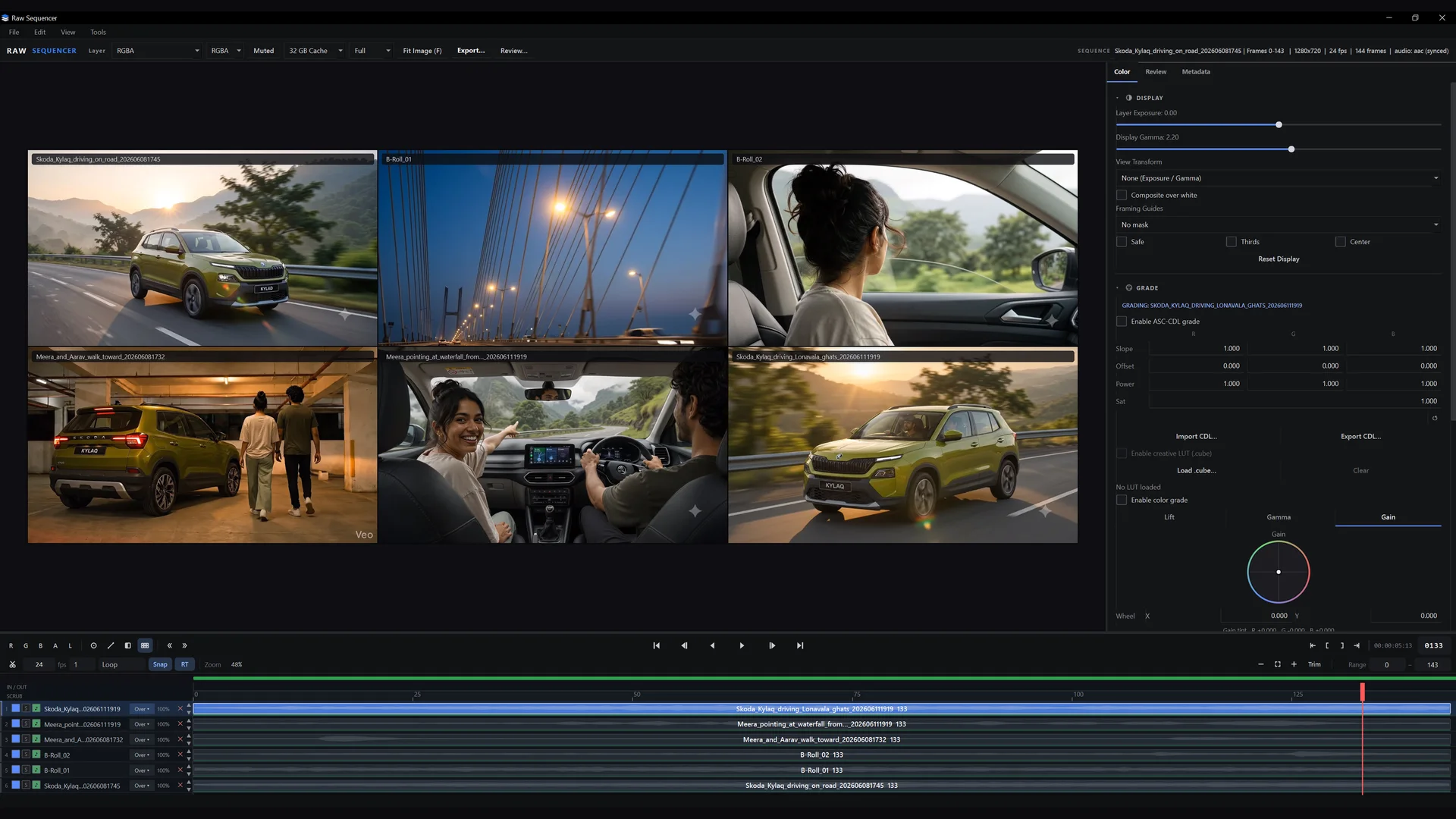
Sync — in multi-view, every loaded clip follows the same transport.
The current key assignments for these controls are listed inside the application, so they stay correct as the build changes.
06
Timeline & frame navigation
The timeline is frame-accurate. Drag the playhead at any speed and the viewer shows exactly the frame under the cursor — when a note says frame 133, you get frame 133. The current frame number is displayed with the clip metadata at all times.
Scrub to inspect a specific frame, then annotate it.
Frame numbers shown on the timeline match the numbers in your file names.
In multi-view, one playhead drives every view so all versions stay on the same frame.
07
Multi-version review
Up to six clips can be reviewed at once in a grid, all playing together in sync on a single timeline. Use it for six iterations of one shot, or for six shots from the same sequence.
Playback, pausing and scrubbing apply to all views together.
Drop back to a single view at any time to inspect one version full size.
08
A/B compare
A/B compare switches the viewer between two loaded versions on the same frame, so a change reads as a change in the image rather than as a jump between two windows. Because both versions share one playhead, you are always comparing like with like.
Use it for before-and-after checks: a lighting tweak, a comp fix, a regraded plate.
09
Wipe & comparison tools
Three comparison modes are available:
Side-by-side — two or more versions laid out next to each other.
A/B — switch the same frame between two versions.
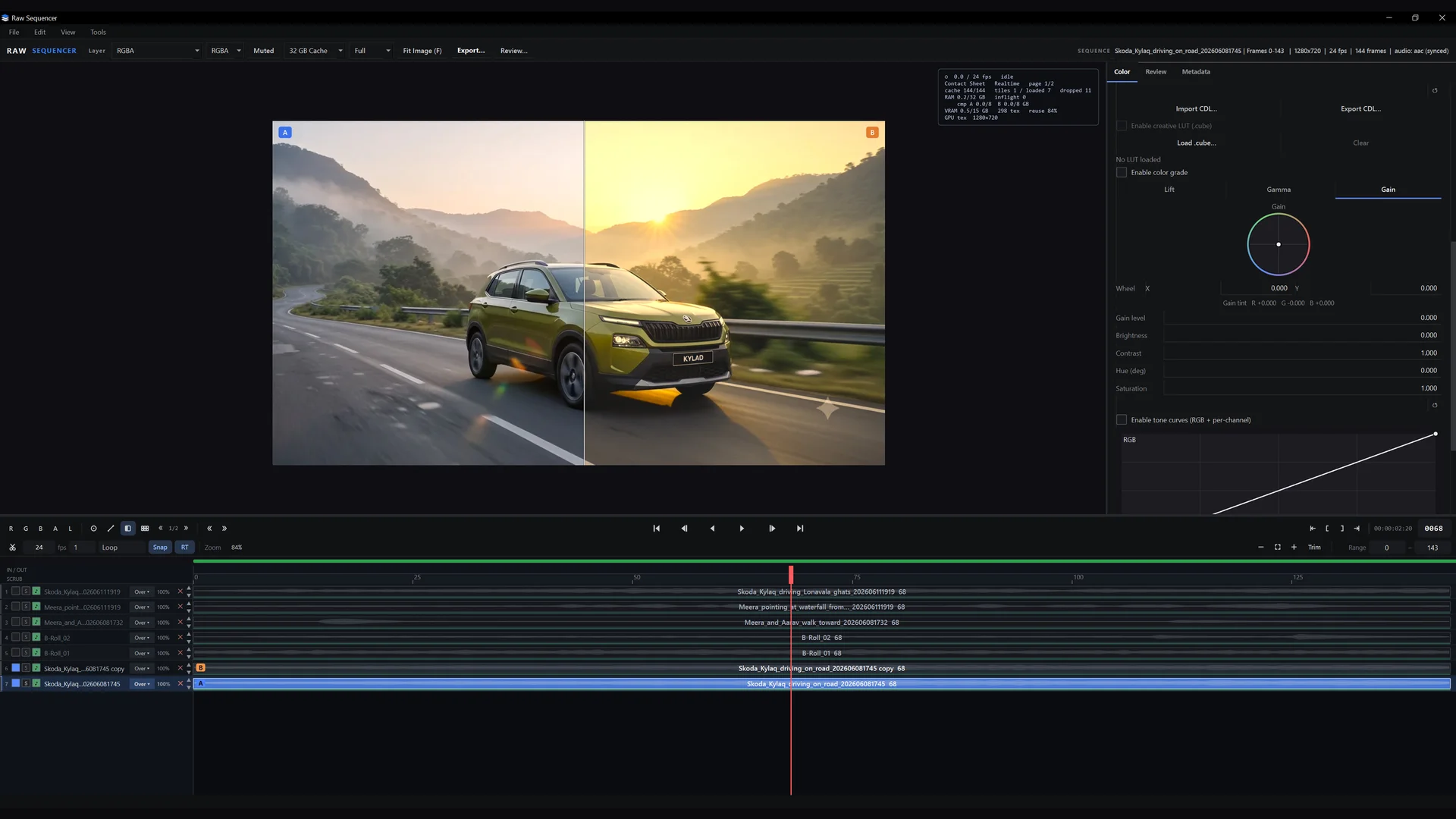
Wipe — drag a split across the viewer to reveal one version over another.
Wipe comparisonTwo versions · one frame
10
Annotations
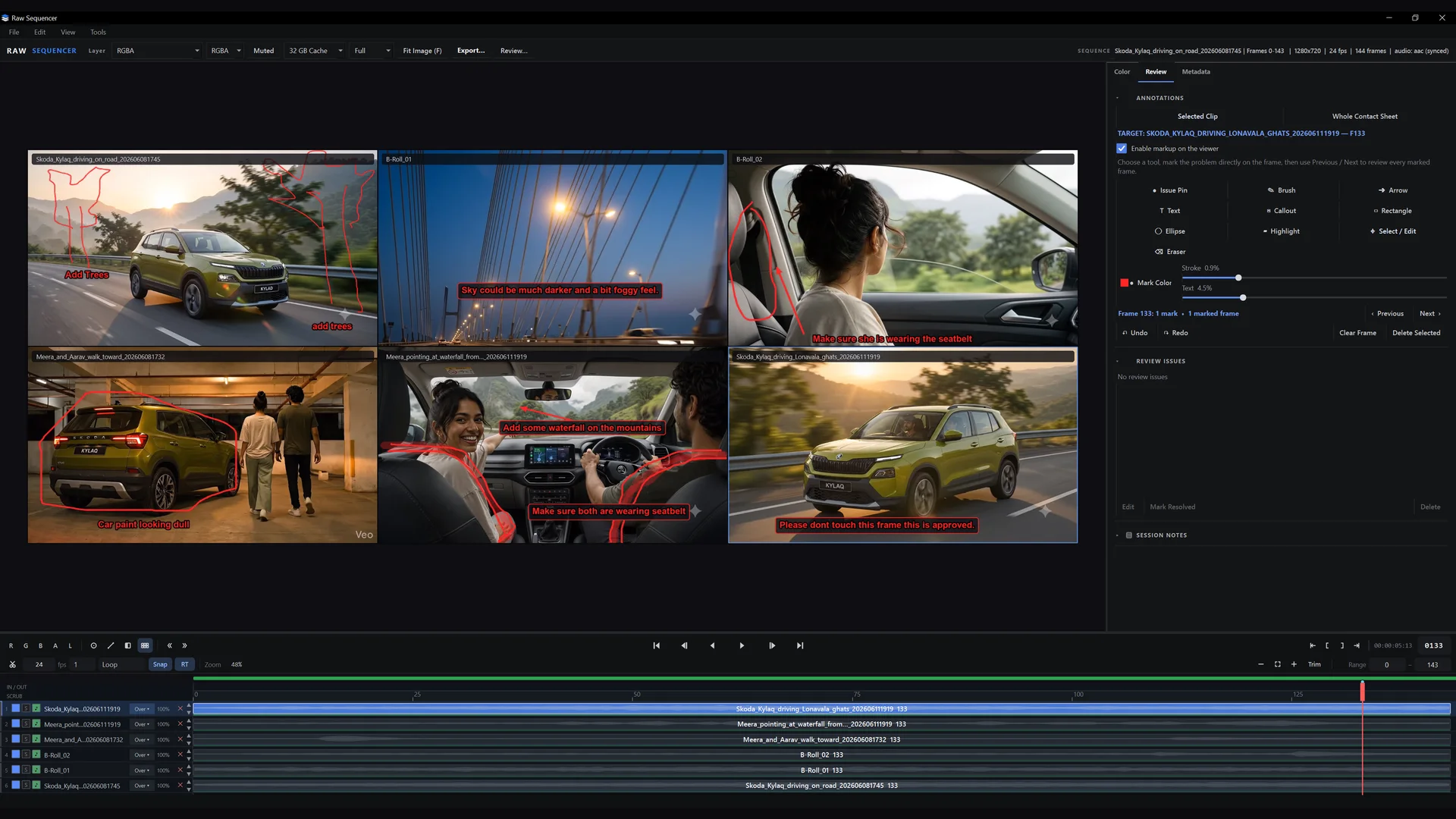
Draw and mark up directly on the frame under review. Annotations are attached to the frame they were made on, so a note never drifts to the wrong frame between review and fix.
AnnotationsMarks attached to the frame
Mark up a single frame, or several frames across a pass.
Annotated frames can be carried into a contact sheet for the review.
11
Colour controls
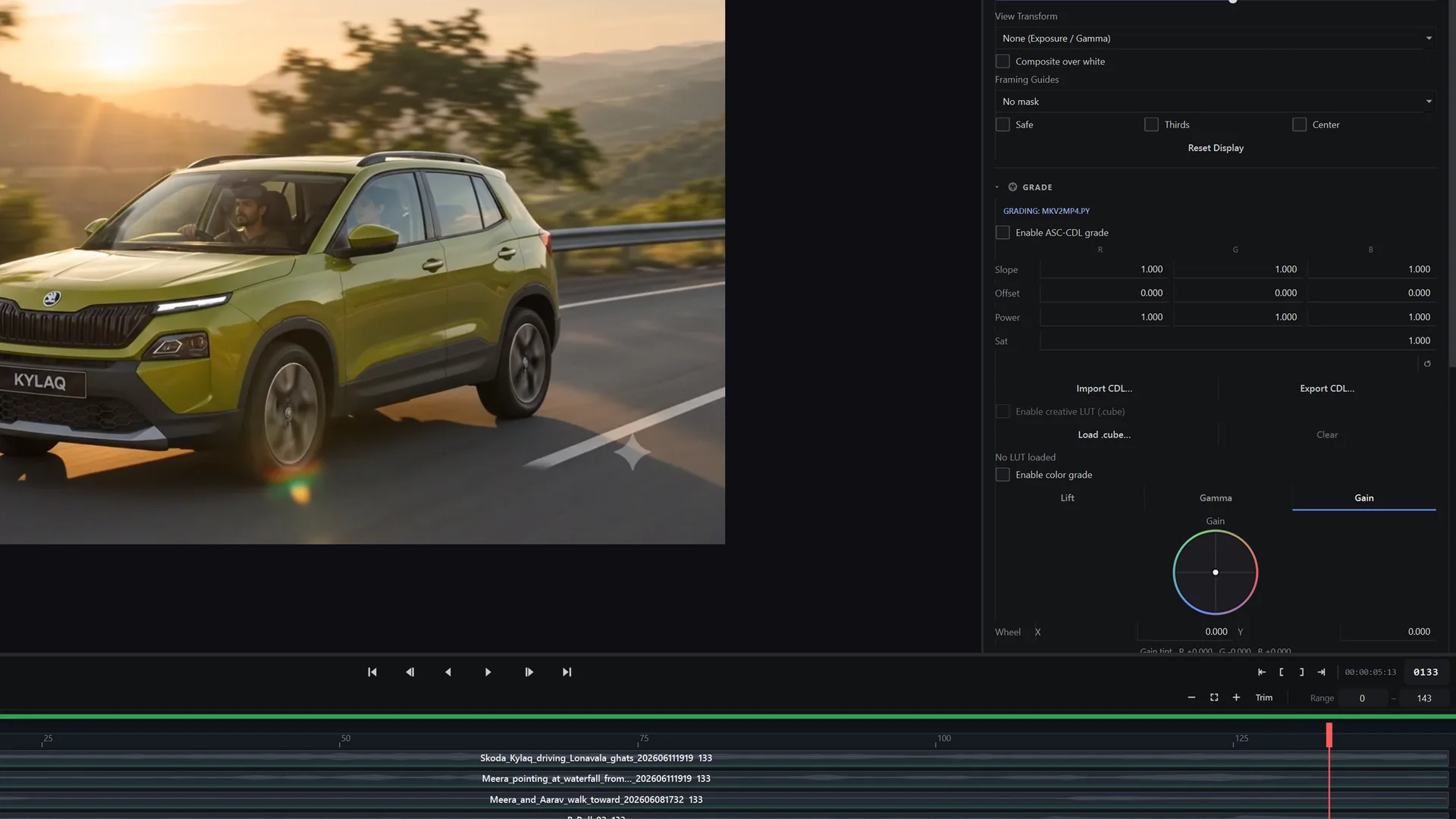
Display and grade controls sit beside the viewer, so a colour check happens in the same pass instead of a round trip to another application.
Display — viewer exposure and gamma for inspecting shadows and highlights.
Grade — slope, offset, power and saturation controls.
Inspection — examine what is actually in the frame rather than what the default view suggests.
Display & gradeColour inspection
Viewer adjustments affect what you see in review — they are an inspection tool, not a replacement for a grade delivered from your colour pipeline.
12
Contact sheets
Turn a reviewed sequence into a contact sheet — a single frame-numbered layout of the shot for supervisor notes, client sign-off or archive. It is the fastest way to hand over a review without sending someone a folder of frames.
13
Licensing & Machine ID
Activation is handled personally, not by an automated licence server. The process is deliberately simple:
Install RAW Sequencer on the workstation you want to use.
Start the application — it displays a Machine ID for that computer.
Email the Machine ID to rawcgi@outlook.com, along with the name and email used for the purchase.
An activation key is issued by hand and sent back to you — allow up to 24 hours, usually much sooner.
Enter the key in RAW Sequencer to activate the licence.
Licence terms
One complete application — there is no feature-limited tier.
Two licence lengths: ₹3,499 for one year, ₹7,499 for three years, + GST.
Licence keys are issued for the Machine Code provided. For workstation changes, reinstalls, or additional machines, contact rawcgi@outlook.com.
Activation is manual, so keys are issued by a person rather than instantly.
Trial licences follow exactly the same process and are issued for 7 days. Full pricing and licence detail is on the RAW Sequencer page.
Tested onNVIDIA RTX 3090 with 64 GB and 128 GB RAM systems
Current buildRAW Sequencer 1.0
There is no macOS or Linux build. Storage should be fast enough to stream the sequence you are reviewing — high-resolution EXR playback is limited by disk throughput as much as by GPU.
15
Troubleshooting
Playback is slower than the clip's frame rate
High-resolution EXR playback depends on both GPU and storage throughput. Check that the sequence is on a fast local drive rather than a network share, close other GPU-heavy applications, and confirm the machine meets the system requirements — particularly 8 GB of VRAM and 32 GB of system RAM.
A sequence does not load, or loads with missing frames
Sequences need consistent, unbroken frame numbering in a single folder. Mixed padding, duplicate numbering or a gap in the range can break detection. Keep one version per folder.
My activation key is not accepted
Check that the ID shown in the application matches the one you emailed. Licence keys are issued for the Machine Code provided. For workstation changes, reinstalls, or additional machines, contact rawcgi@outlook.com.
I have paid but received nothing yet
Keys are issued manually, so allow up to 24 hours after payment. Check the spam folder first, then email the purchase name and address to rawcgi@outlook.com.
Colour looks different from my other viewer
Viewer exposure, gamma and grade controls change what is displayed in review. Reset them to default before comparing against another application.
16
Support
Support, licensing and bug reports all go to one place, and are answered by the person who wrote the software:
When reporting a problem, it helps to include your Windows version, GPU, the build shown in the application, the file type you were reviewing and what you expected to happen.